
Standalone tool
Launching soonSchedule — bar bending schedules
Bar bending schedules from item to document. Items are entered once — the application handles numbering, checks, masses, revisions, the PDF document and the XLSX spreadsheet.
Launchcoming soon!
Terms and the launch date will be announced on this page.
How you work in Schedule
From item to issued revision in four steps
The schedule grows in the grid, and the application watches what is usually checked by hand at the end — numbers, dimensions and masses.
01Enter
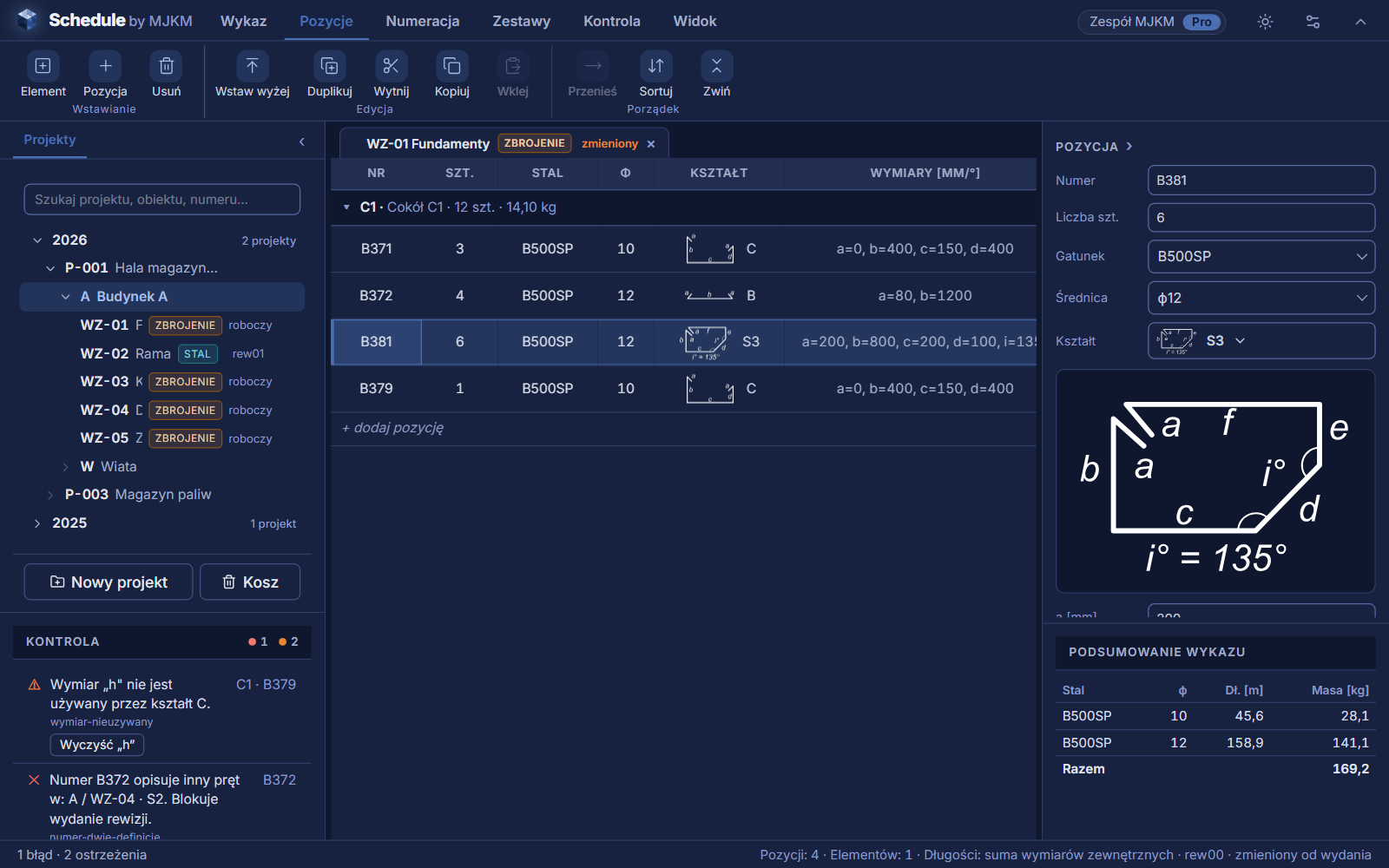
A shape from the set, dimensions next to the drawing
An item is a single row: number of pieces, grade, diameter and a shape from the MJKM set or from EN ISO 3766. Dimensions are entered next to an enlarged drawing of the shape, and the bar length and mass are calculated immediately.
02Number
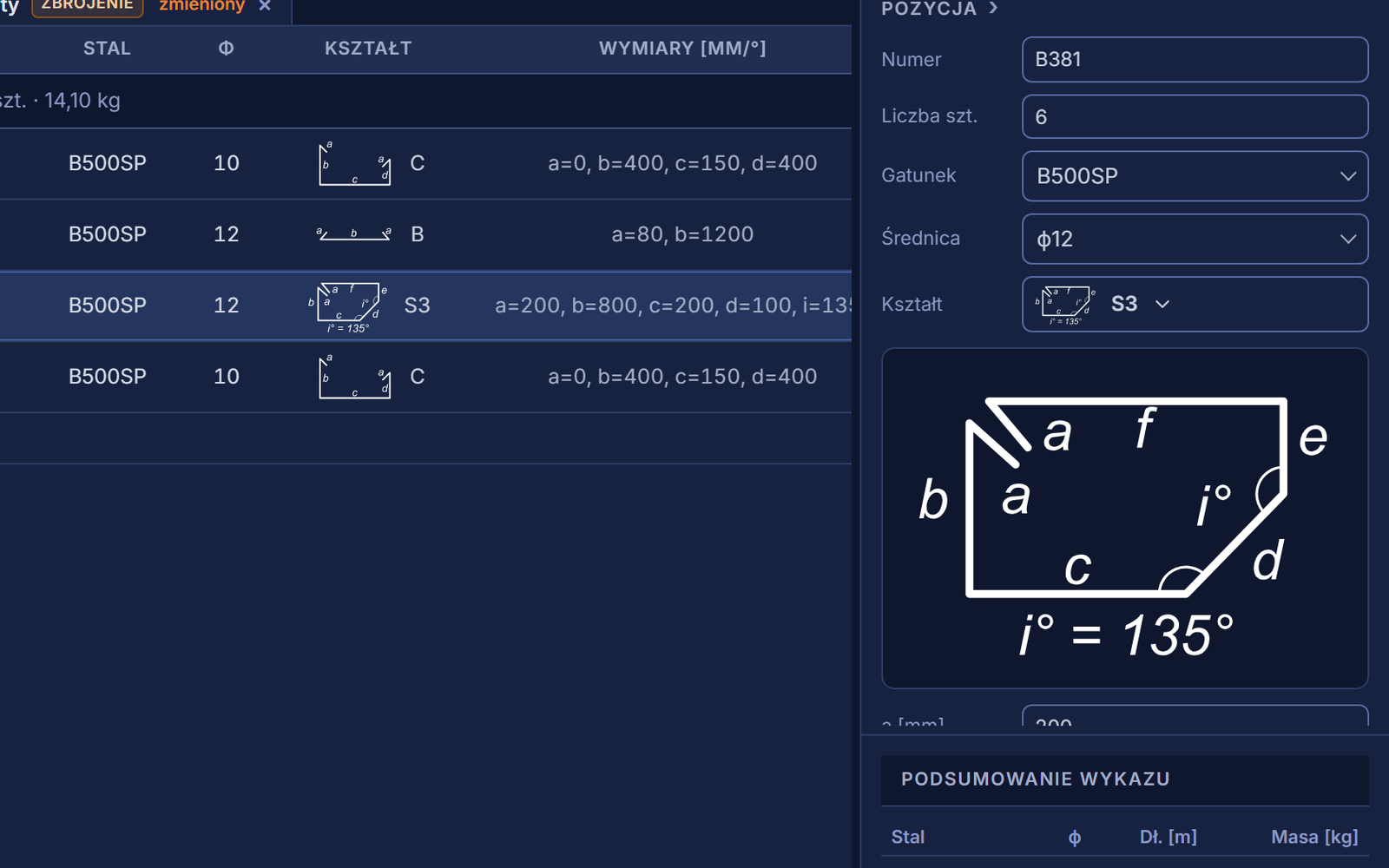
Bar numbering by team rules
A number pattern built from the document number, the element symbol or the diameter. The same bar gets the same number — in the schedule, in the structure or in the whole project, depending on the setting. Before a change you can see which numbers will change.
03Check
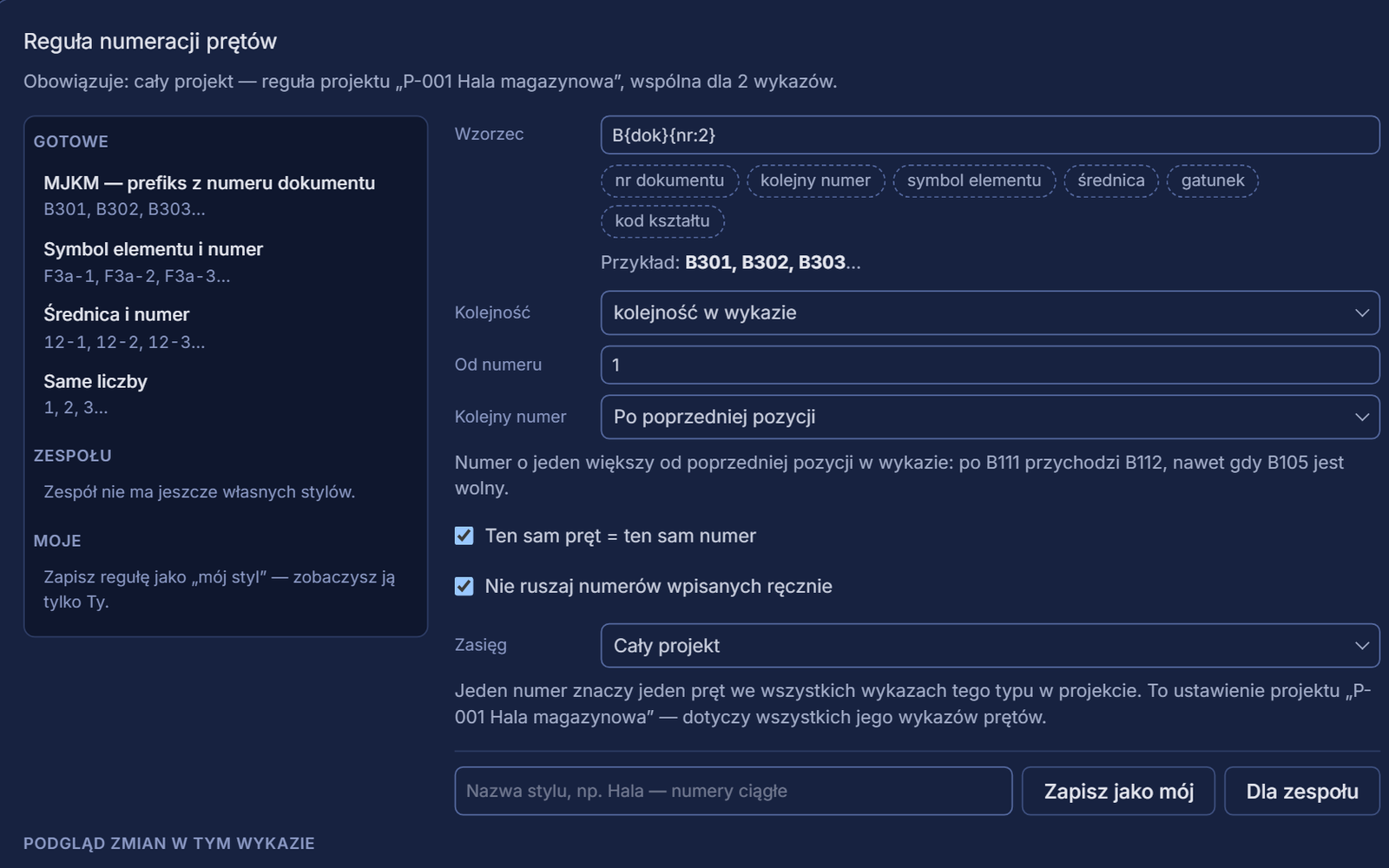
Schedule check as you work, before issue
Two different bars under one number, a missing dimension, a bar longer than the stock length — the check shows this as you work. An error stops the release of a revision, a warning suggests a fix, for example merging two numbers of the same bar.
04Issue
Revisions you can compare
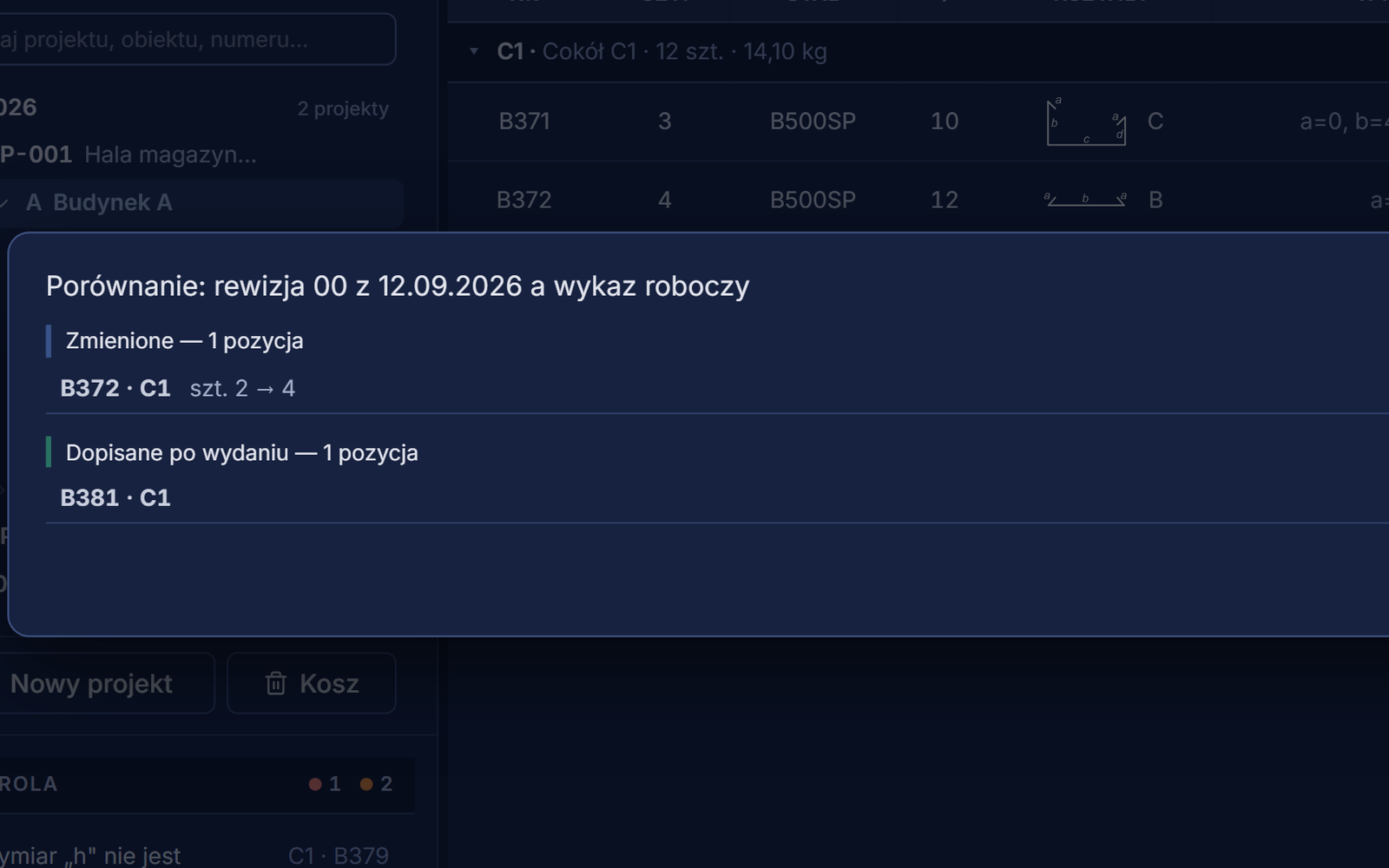
An issued revision freezes the bar numbers and saves the PDF and XLSX files that went to site. A comparison with the current schedule shows what was changed and what was added after issue.
Document for the site
PDF and XLSX from a single model
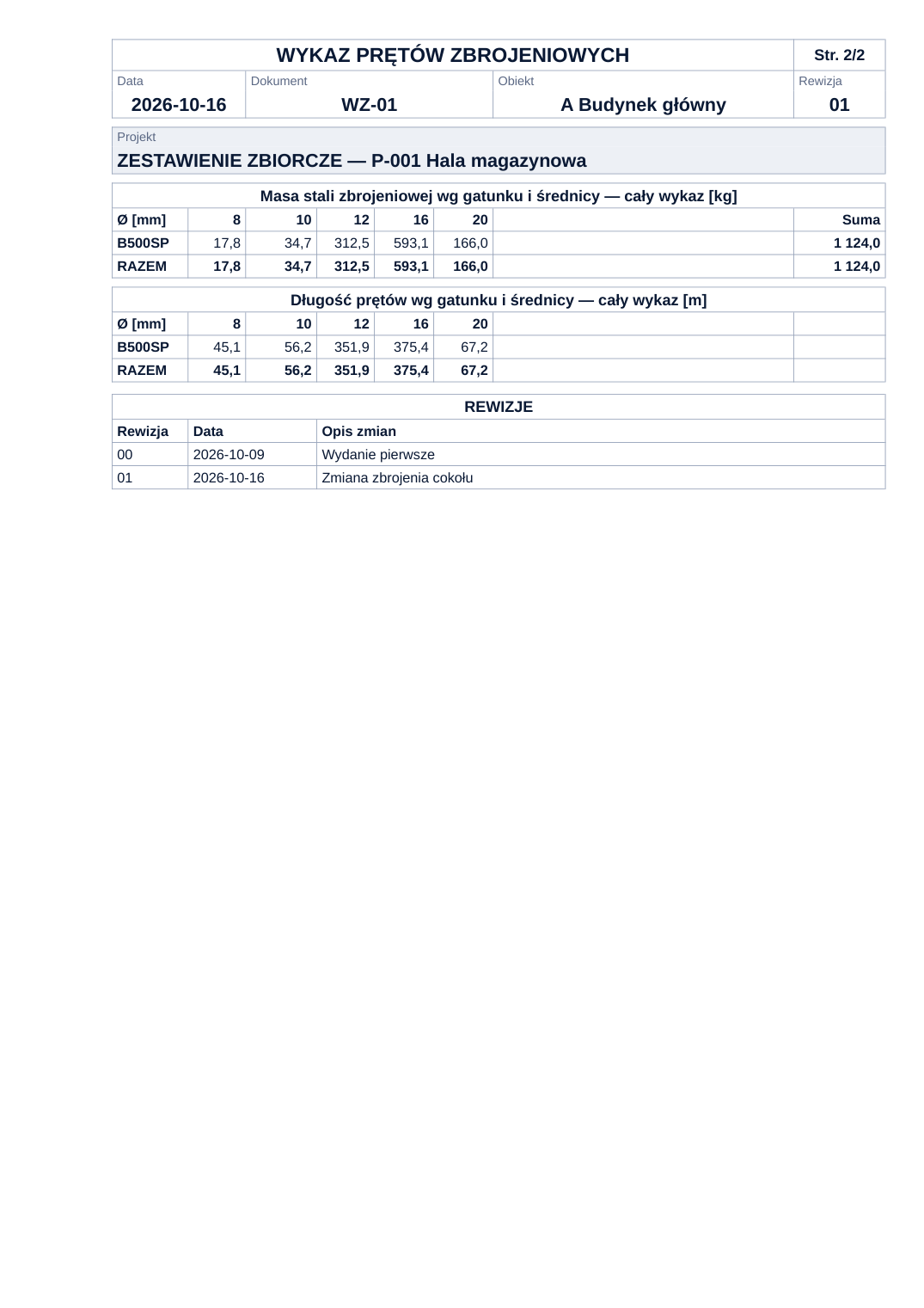
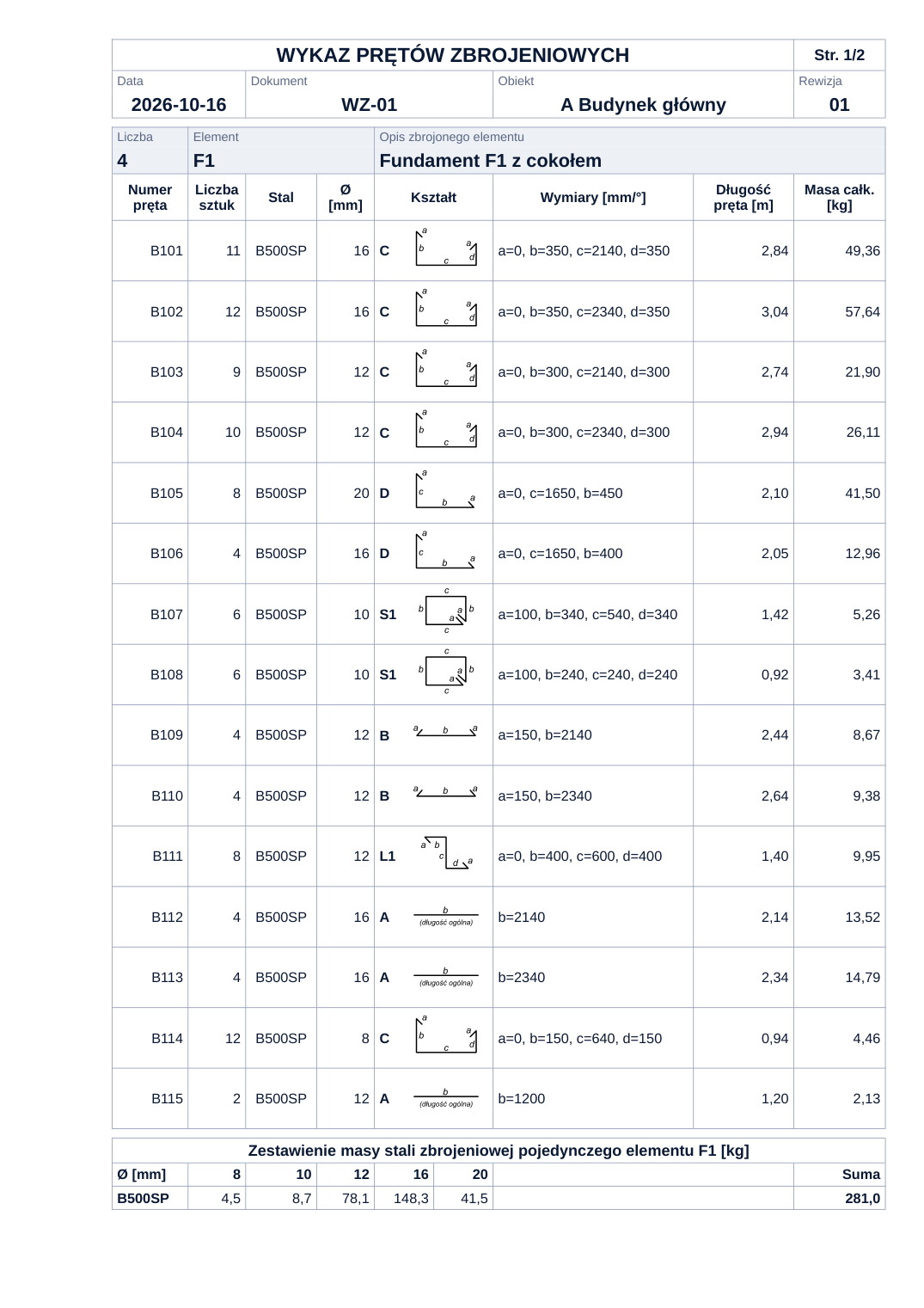
Both forms of the document are drawn by the same schedule model, so they cannot show different figures. The spreadsheet breaks pages the same way as the PDF, and the figures stay figures in it — they can still be summed.
- Up to 16 bars per A4 sheet, with a drawing of the shape in every row
- Mass summary of the element and a combined summary of the schedule — grade × diameter
- Revision table and a shape legend with the length formula
- Document headings in Polish or in English
Shapes
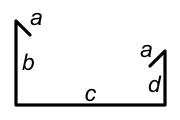
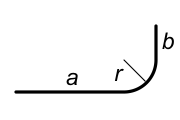
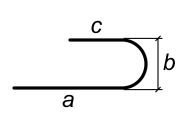
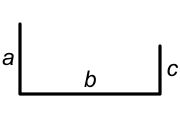
Every shape with a drawing and a length formula
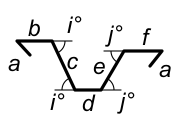
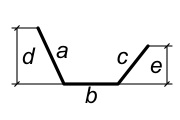
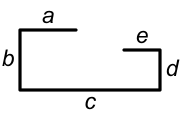
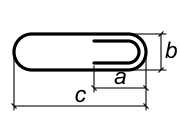
- The MJKM shape set and 15 shapes from Table 5 of EN ISO 3766 — the set is chosen when the schedule is created
- ISO shapes have hooks at both ends: the hook type is chosen from a list and the hook length is entered like a dimension
- Bar length as the sum of the outer dimensions; for bends, along the outer contour, with a note on the method on the printout
- In the full version, the team's own sets: shapes with a drawing and a length formula, plus custom grades and diameters
MJKM set
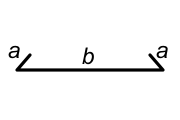
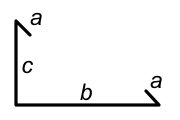
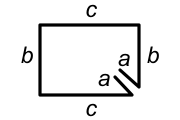
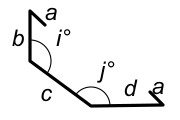
EN ISO 3766 · in the full version
Teamwork
One person edits, the others view
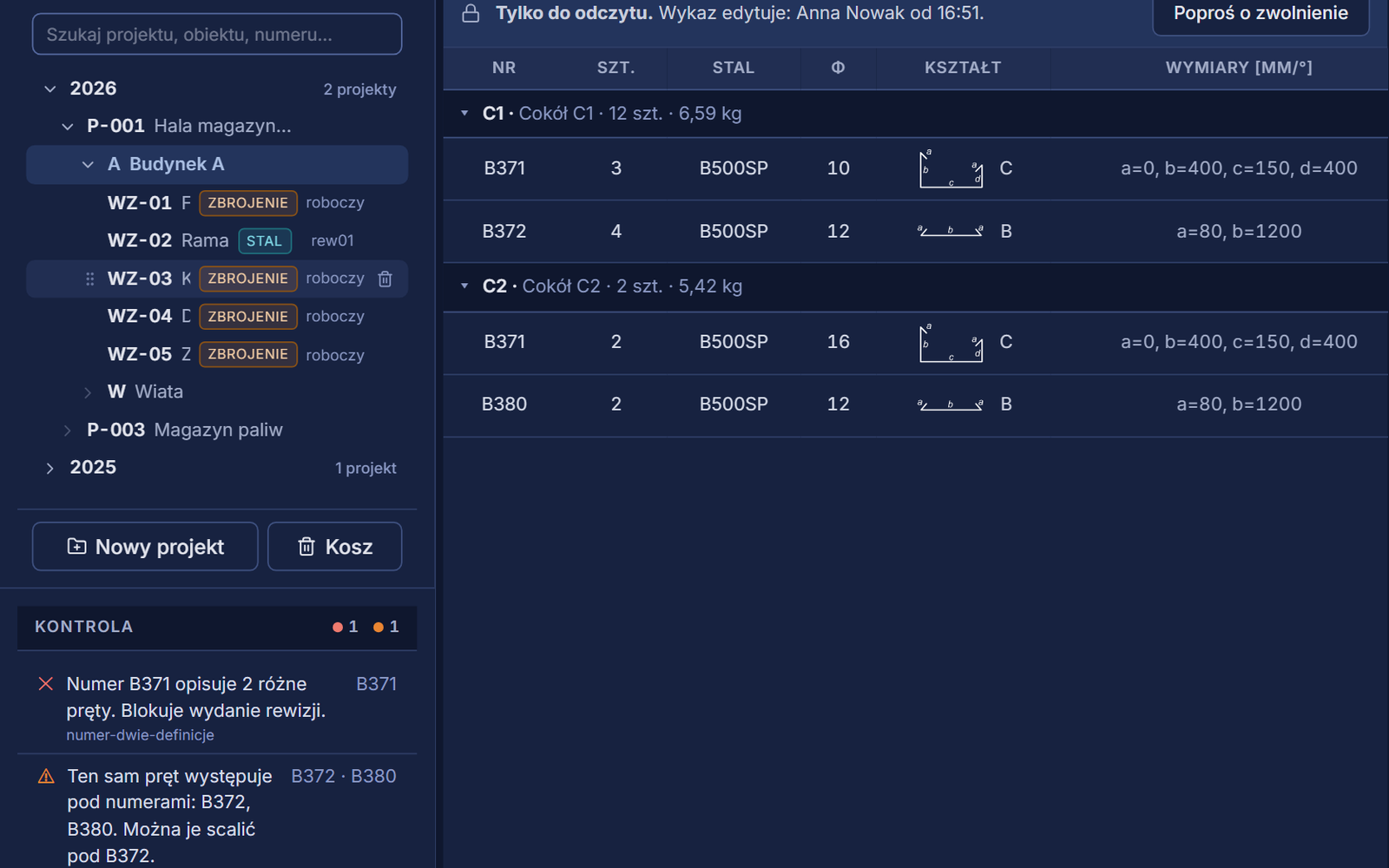
When one person has a schedule open, the others see it read-only and can ask for it to be released — no two versions of the same document.
Recycle bin and undo
Deleted schedules, elements and items go to the recycle bin, and recent changes can be undone.
Change history
For every schedule you can see who changed what, and when.
Team settings
Default sets, numbering rules, print settings and the welding allowance are set once — every new team schedule gets them straight away.
Free and full version
The free version lets you try it out. The full version saves and issues schedules for site.
Without creating an account you can enter a few bars, see the numbering and the live check, and download a PDF document. That is enough to see whether Schedule suits the way your office works.
| Scope | Free | Full version |
|---|---|---|
| Items, numbering and a live schedule checkFree version: one schedule with one element and 3 bars, no saving — it disappears when you close or refresh the page. | ✓ | ✓ |
| All shapes of the MJKM set | ✓ | ✓ |
| PDF documentFree version: with default settings, with a “free version” footer. | ✓ | ✓ |
| Saving schedules to the team account, with no limits on projects, structures, elements and bars | — | ✓ |
| Issuing and comparing revisions, change history and recycle bin | — | ✓ |
| Custom numbering rules and styles | — | ✓ |
| Shapes from EN ISO 3766, with hooks | — | ✓ |
| All print settings (including the shape legend) and document headings in English | — | ✓ |
| XLSX spreadsheet | — | ✓ |
| The team's own sets of shapes and materials | — | ✓ |
| Several people working on one team's schedules | — | ✓ |
The free version works without an account and saves nothing — the schedule disappears when you close or refresh the page.
Questions and answers
When is Schedule launching?
Schedule is in the final stage of preparation. We will announce the launch date on this site.
How is the bar length calculated?
As the sum of the outer dimensions — the document describes it the same way. For shapes with a bend from the EN ISO 3766 set, the length is calculated along the outer contour, and the printout carries a note on the method that the standard requires.
Does this licence also cover structural steel schedules?
No — bar bending schedules and structural steel schedules are two licences in one application. Both types sit side by side under the same structure, and the licence decides which schedules you can create.
Where are the schedules saved?
In the full version — on the team account on the MJKM platform, so the whole team works on the same schedules and the files of issued revisions are stored with the schedule. The free version saves nothing: the schedule disappears when you close or refresh the page.
Can the XLSX spreadsheet still be recalculated?
Yes. The figures in the spreadsheet are numbers, not text, and the pages break the same way as in the PDF.
What happens to the schedules when the licence ends?
Existing schedules remain available for viewing and export.
Schedule coming soon to your account
Until the launch we will gladly answer your questions about Schedule.